
How to Level Your 3D Printer Bed: Manual, Auto, and Mesh Methods Explained
Bed leveling on a 3D printer is not about making the bed level with the ground. The real goal is to align the nozzle's travel plane parallel with the bed surface so the first-layer gap stays consistent across the entire build area.
This article covers three approaches -- manual leveling, auto bed leveling (ABL), and manual mesh -- with reproducible steps and guidance on choosing between them. On my own machine, turning a manual knob just 1/8 of a turn produced a visible change in first-layer squish. Differences of 0.01 to 0.1 mm determine whether the first layer succeeds or fails, and I have felt that reality many times over. Jump to key sections here: Z Offset Adjustment, Verifying with a Test Print.
What Bed Leveling Actually Means -- Why Parallelism Matters More Than "Level"
Bed leveling is the process of making the distance between the nozzle's travel plane and the build plate as uniform as possible across the entire build area. The point is not visual alignment -- it is about creating conditions where the first layer is deposited with consistent squish everywhere. Too close, and the filament gets crushed flat, scraping the nozzle against the surface. Too far, and the filament rolls around as a round strand that refuses to stick. Bed leveling is the fundamental adjustment that avoids both extremes.
A common misconception comes from the word "leveling" itself, which makes people think of leveling relative to the ground. What actually matters is not what a spirit level shows. On a 3D printer, you need the bed surface to be parallel to the nozzle's travel plane -- the XY plane -- with a consistent gap. Even if your desk or floor is slightly tilted, the first layer prints fine as long as the relationship between the nozzle plane and bed surface is not disturbed. I once moved my printer to a new spot where the frame sat at a slight angle, but first-layer adhesion barely changed because the nozzle-to-bed parallelism was maintained. After that experience, the distinction between "making things level with a spirit level" and "bed leveling" became crystal clear.
Focus on Parallelism and Consistent Gap, Not "Level"
On an FDM printer, the nozzle travels along the X and Y axes across a plane, shifting in Z to build layers. What really matters for the first layer is whether the bed is tilted relative to the plane the nozzle traces. If the left-rear corner sits too close while the right-front corner sits too far, the same G-code produces different squish levels depending on position. That is exactly what causes the classic symptoms: one side crushed flat, the opposite side peeling off.
Once this clicks, bed leveling stops being "making the bed level relative to Earth" and becomes "aligning the bed to the plane the nozzle draws." QIDI's 3D Printer Bed Leveling Guide also describes bed leveling as making the nozzle-to-bed gap uniform across the build area. Put differently, the reference plane is not the floor -- it is the printer's own motion system.
Key Terms to Clarify Up Front
A few terms come up repeatedly from here on, so defining them now prevents confusion. First layer is simply layer one. It is the foundation for everything above, and instability here cascades upward even if later layers look fine. Z offset is the fine-tuning value for nozzle origin height. Even when the bed is parallel to the nozzle plane, the nozzle as a whole can sit slightly too high or too low, throwing off first-layer squish. Bed leveling and Z offset may look similar, but they serve different roles.
Another important concept is mesh bed leveling. This method probes multiple points on the bed, maps the height variations, and compensates during printing. Prusa's knowledge base describes configurations ranging from a default 3x3 grid (9 points) to a high-density 7x7 grid (49 points), catching subtle warps and dips that a simple four-corner check would miss. Even minor bed surface irregularities affect the first layer, so this approach becomes more valuable the further your bed deviates from a perfect plane.
Manual and Auto Leveling Accomplish the Same Thing
Manual bed leveling involves adjusting height at the corners and center using knobs or screws, gauging the nozzle gap with a sheet of paper. Auto bed leveling (ABL) uses a sensor to probe multiple points, collect height data, and apply Z compensation during printing. The methods differ, but the goal is identical: making the nozzle-to-bed distance uniform across the entire surface.
That said, automation does not eliminate the need for adjustments. Contamination on the sensor tip or minor mechanical drift can easily change results. ABL excels at compensating for bed surface irregularities, but it does not always nail the nozzle origin on its own -- the Z offset. In practice, the workflow is: establish parallelism, apply mesh compensation, then dial in Z offset while watching first-layer squish.
A Visual Makes This Click
This section benefits enormously from diagrams. One useful illustration compares the nozzle travel plane and bed surface when parallel versus not parallel -- parallel means uniform gap everywhere, non-parallel means the gap varies by position. Another helpful visual contrasts checking level with a spirit level against checking alignment relative to the nozzle plane. In words alone, both sound like "leveling," but recognizing the different reference planes resolves most of the terminology confusion.
This perspective matters in real troubleshooting too. If a spirit level shows perfect horizontal but the first layer is thin on one side, the problem is parallelism with the nozzle plane, not the angle to the floor. Conversely, if the frame is slightly tilted but squish looks consistent everywhere, leveling is working. The word "level" in 3D printing refers to a different reference than in general woodworking. Getting this straight up front makes everything that follows -- manual adjustment, ABL, Z offset -- fit together naturally.
Pre-Leveling Checklist
Before touching any adjustments, getting conditions right matters more than the adjustment itself. Bed leveling involves chasing nozzle-to-plate gaps at the thickness of a sheet of paper, so dirt, thermal expansion, or mechanical looseness left unchecked will produce results that look fine at first but fall apart once printing starts. I have carefully leveled at room temperature only to see first-layer squish change the moment I heated to PLA printing temps -- the center looked good while the edges went thin, or vice versa. The heated state is what you actually print in, so leveling must happen at printing temperature.
Preheat and Clean First
Start by heating the nozzle and bed to the printing temperature for your material. For PLA, a common starting point is around 190-210 C for the nozzle and 50-60 C for the bed, though these are just ballpark figures -- adjust based on your filament manufacturer's recommendation and your machine's behavior. Let everything stabilize before checking gaps, because values that looked right at room temperature shift once heat enters the picture. Glass plates and steel sheets in particular can change their warp profile slightly with temperature, and the first layer shows it immediately.
After preheating, remove any blob of filament stuck to the nozzle tip. If residue remains on the tip, you end up feeling plastic resistance instead of paper resistance, which makes you read the gap as tighter than it really is. The bed surface needs attention too -- fingerprints or thin residual films from previous prints degrade adhesion. Wipe the surface with isopropyl alcohol to remove old glue residue and skin oils, and your first-layer results after leveling will be much more honest.
Check the Machine Itself
A perfectly leveled bed means nothing if the machine has play in it. Look at belt tension on X and Y axes, check for wobble in each axis, listen for abnormal sounds or periodic resistance in the Z lead screw, and verify that the build plate mounting is tight. A loose belt degrades head positioning repeatability -- leveling might look right during the procedure but shift during printing moves. For the Z lead screw, run it up and down and feel for catches or periodic binding. If the build plate rocks when you push it gently front-to-back or side-to-side, fix that mounting before worrying about gap adjustments.
You Do Not Need Much
The supply list is short, but missing something mid-procedure breaks your flow. A few sheets of copy paper work well -- standard thickness is roughly 0.08-0.1 mm, which makes it a convenient reference for gauging resistance. Beyond that, have hex keys and screwdrivers ready in case your machine needs adjustments beyond the bed knobs, and set up good lighting so you can see how the paper drags under the nozzle. Differences of 0.02 mm are hard to see, but you can feel them through the paper and spot them with the right light angle.
Safety Is Part of the Setup
You are working with a preheated machine, so awareness of hot surfaces is baseline. The nozzle and heat block are extremely hot, and the bed sits at temperatures that can cause low-temperature burns. Timing matters -- when you pick off a filament blob or slide paper under the nozzle, your fingers get close to those hot parts. Avoid toggling power while the homing sequence or preheat cycle is still running; wait for the head to stop moving before interacting. On machines with part-cooling fans or hotend fans spinning, watch for loose paper edges or fingertips getting caught, especially when leaning in to check tight spaces.
Pre-Leveling Checklist Items
In practice, running through these in order reduces mistakes:
- Preheat the nozzle and bed to actual printing temperature
- Remove filament blobs from the nozzle tip
- Degrease the build plate surface with isopropyl alcohol or similar
- Check belt tension and mechanical play on all axes
- Verify the Z lead screw moves smoothly without catching or binding
- Confirm the build plate mounting is tight
- Have copy paper, hex keys, screwdrivers, and a light source within reach
- Know where the hot parts and spinning fans are before starting
A diagram version of this checklist -- icons for temperature, cleaning, tools, drive components, and safety arranged on one sheet -- communicates at a glance what needs to happen before leveling begins.
Signs That Leveling Is Needed -- Reading the First Layer
The first layer is the fastest feedback on whether leveling and Z are dialed in. Even right after paper-gauging feels spot-on, actually depositing filament reveals too-close, too-far, and position-dependent variation clearly. QIDI's 3D Printer Bed Leveling Guide frames bed leveling as the work of achieving first-layer uniformity, and in practice, visual inspection beats theory for speed.
A useful figure here would be a side-by-side comparison of good first layer / too close / too far, ideally in macro-photo style. Adding a symptom gallery -- crushed lines, stringy floating lines, adhesion only in the center, peeling only at edges -- makes identification far easier than text alone.
Too Close
When the nozzle sits too close, filament does not form a clean oval cross-section -- it looks like a flattened band. The surface appears unusually glossy, ridges form where adjacent lines meet, or the lines merge into a featureless sheet where boundaries disappear. A first layer that looks tightly bonded can actually be over-squished, producing something like elephant skin texture or a series of crushed streaks.
In this state, adhesion is there but the first layer is not good. The filament has nowhere to go as it exits the nozzle, so it spreads sideways unnaturally, making line width bloat. In severe cases the nozzle tip drags across the surface, leaving score marks, and the extruder motor struggles at corners and direction changes, sometimes gouging the print. You can hear it too -- the sound shifts from smooth deposition to scraping.
The key diagnostic is not whether lines stick but whether squish looks natural. A good first layer shows individual lines that lightly connect while remaining distinguishable. Too close, the cross-section flattens out excessively and perimeter corners bulge beyond their intended size. If small text or holes appear abnormally thick on the first layer only, this is usually the culprit.
Too Far
When the nozzle sits too far, filament is not pressed flat against the bed -- it sits as a round strand, barely touching the surface. Three symptoms are immediately obvious: lines are thin, adjacent lines do not bond, and some sections shift around instead of sticking. If lines get dragged at direction changes or float upward at corners, the gap is significantly too large.
Push the gap further and extruded filament no longer lands on the bed at all -- it floats as thin strands in a near-air-printing state. The nozzle deposits material that refuses to anchor, and thin strings get dragged around by head movement. This can happen across the whole bed or appear only at the edges while the center barely holds. Edges lifting, perimeters curling up, skirts or brims printing as broken segments -- all classic too-far symptoms.
Too-far symptoms also mimic contamination. If the nozzle height seems close enough but certain spots refuse to stick, skin oils or residue on the bed surface can produce the same look. The way to tell them apart: if the line itself is round and thin everywhere, height is the issue; if the line shape looks normal but adhesion fails in patches, suspect surface contamination too.
💡 Tip
A good first layer shows lines lightly pressed flat with no gaps between them and a uniform surface. Too close means "smashed flat," too far means "round strands sitting on top." That mental shortcut makes diagnosis fast.
When It Varies by Location
The tricky scenario is when symptoms differ across the bed. Center sticks fine but edges peel. Right side is thick, left side is thin. Front lines break while the back looks normal. These patterns point not to a simple overall Z offset problem but to bed tilt or localized warping. Prusa's Knowledge Base on mesh bed leveling explains that multi-point probing and compensation exist precisely because four-corner alignment alone is not always enough.
On one of my builds, I ran a large rectangular first-layer pattern and found that only the front-left lines were thin and breaking mid-stroke. Center and right side looked nearly perfect, so I initially suspected a partial clog or filament path issue. But the symptom reproduced in the same spot every time, which pointed to a position-dependent cause. The front-left corner was sitting slightly too far from the nozzle, causing lines to go round and lose adhesion right at that area. Focusing adjustment on that zone and nudging the gap closed eliminated the symptom. In situations like this, "the printer is acting up" is less useful than "which coordinates are failing."
To diagnose location-dependent issues, print a large first-layer test and compare center versus edges, all four corners, and each side for line width and adhesion quality. If the center sticks but edges peel, overall parallelism is off or only the edges have a height discrepancy. If line width varies by position, the nozzle-to-bed gap is not uniform. Edges lifting with occasional floating strands suggest too-far conditions combined with possible surface contamination.
Conversely, if one area is heavily over-squished, that zone is too close. If the center looks great but the entire perimeter is unstable, you may have centered your reference too narrowly. When four-corner adjustment cannot close the gap between center and edges, the bed has a shape that four-point leveling cannot absorb. That is when ABL or manual mesh -- approaches that see the entire surface -- start earning their keep.
What matters in first-layer observation is not whether it failed but how it failed. Over-squished? Poor adhesion? Center-to-edge variation? Once you can read these patterns, adjustments speed up dramatically.
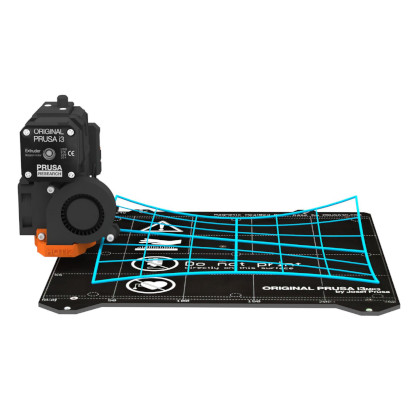
メッシュベッドレベリング | Prusa Knowledge Base
Original Prusa FDMプリンタには、プリント面からの距離を検出するセンサーが搭載されています。キャリブレーション中、そして各プリントの前に、センサーはビルドプレート全体(パウダーコートシートでもスムースPEIシートでも関係あり
help.prusa3d.comManual Bed Leveling: Aligning Four Corners Plus Center with Paper
Preparation
Manual bed leveling looks like a feel-based craft, but it can be systematized quite effectively. The basic flow is: preheat, home the axes, disable the steppers, then visit four corners and center in sequence, matching paper resistance at each point. The first thing to internalize is leveling at printing temperature, not at room temperature. The bed and nozzle shift slightly when heated, so a room-temperature setup drifts once you actually print. QIDI's 3D Printer Bed Leveling Guide notes that bed leveling is a procedure that requires periodic re-adjustment, and thermal deformation is one of the main reasons.
For preparation, have a sheet of copy paper ready and remove any filament ooze from the nozzle tip. Paper thickness is not perfectly uniform, so the target is not an absolute number -- it is matching the same resistance feel at every point. A reproducible sequence looks like this:
- Preheat nozzle and bed to printing temperature
- Home all axes via the menu or
G28 - Disable stepper motors so the head moves freely by hand
- Move the nozzle to the first corner and slide paper underneath
- Turn the bed knob until paper resistance feels right
- Repeat for all four corners, then check the center
- Go around the corners once more and recheck the center for consistency
A diagram showing the measurement sequence -- arrows from corners to center -- helps visualize the path. Adding a knob-rotation-to-Z-change reference makes fine-tuning intuitive immediately.

3Dプリンターベッドを平準化する方法
3Dプリントでベッドレベリングが重要である理由、調整が必要な時期を識別する方法、およびプロのようにベッドを平準化するためのステップバイステップガイドに従ってください。
qidi3d.comAligning Corners and Center
In practice, moving the nozzle in a consistent direction -- front-left, front-right, rear-right, rear-left -- prevents confusion. At each point, slide the copy paper back and forth, targeting the feel of slight drag without stopping. You do not need the paper to catch and ripple, and zero resistance means the gap is too large.
That drag should feel like the paper is not trapped but you can clearly feel contact. Since paper thickness varies, aiming for a precise number here is less important than matching identical feel at every point. Final judgment comes from a first-layer test print -- accepting that mindset from the start reduces frustration.
Keep knob turns small. A base increment of 1/8 to 1/16 turn is plenty. On an M3 coarse-thread screw (0.5 mm pitch per full turn), a quarter turn moves about 0.125 mm and an eighth turn about 0.06 mm. First-layer success or failure hinges on differences this small, so half-turn or full-turn adjustments overshoot easily. A clock-face diagram showing how much Z changes per knob angle would make this intuitive.
An easy-to-miss detail: adjusting one corner shifts the others slightly. The bed is a single plate, so raising the front-left corner changes the feel at the diagonal and center. Because of this, do not try to nail everything in one pass. Two or more full rounds are the norm. The stable sequence is: rough-in all four corners, check center, then revisit the corners.
The center is a verification point after the corners are set. If center paper resistance is noticeably different from the corners, you are seeing the bed's own shape characteristics. What I personally prioritize is not mathematically perfect corner values but uniformity across the area where I actually print. If most of my models sit near the center, I want that region dialed in over everything else. Obsessing over one corner while the center gets too tight leads to worse real-world results.
When I first started with Ender-series machines, I thought tighter paper drag meant better adhesion. In practice, setting paper resistance heavy enough to buckle the sheet made the first layer look good initially, but extrusion struggled on the second layer and occasionally jammed. Switching my reference from "heavy drag" to "slight catch" gave me both stable first layers and smooth extrusion. This matters especially on machines prone to over-squish.
💡 Tip
One pass through the corners is not enough for full-area uniformity. Rough-in the corners, check center, return to corners -- this loop brings the range you actually use into alignment much more reliably.
Final Check and Test Print
After paper adjustment, do not jump straight into a real print. Re-home the axes first, then recheck the center and primary use area for consistency. If the same feel reproduces after homing, good. If not, make micro-corrections in the 1/8 to 1/16 turn range. At this stage, prioritize consistent feel across your frequently used area rather than perfecting a single point -- real-print yield improves more that way.
Next comes the answer key: a first-layer test. Print a broad pattern and observe whether line squish matches at center, front, back, left, and right. A full-area first-layer pattern may take around 15-20 minutes, but in that time you see the trend across the entire bed -- far more efficient than failing small prints repeatedly. A first-layer height of 0.2-0.3 mm is easiest to read visually, showing clearly whether lines sit round or get dragged flat.
Test prints often reveal differences that paper gauging missed. When that happens, resist the urge to fix a single corner. Instead, adjust toward uniformity in the zone where you actually print. If your typical models occupy the central 60-70% of the bed, optimize that area first. Chasing perfect adhesion at the extreme corners while sacrificing center quality leads to worse day-to-day results.
Once the corners and center are aligned, manual leveling is in solid working shape. If a persistent gap between center and edges remains, the parallelism itself is fine but a different method is needed to absorb surface irregularity. That is when the next approach becomes relevant.
How Auto Bed Leveling Works -- And Why ABL Is Not Set-and-Forget
How ABL Works
Auto bed leveling (ABL) does not match the nozzle-to-bed distance at a single point. It uses a sensor -- inductive, touch, or optical -- to probe multiple points on the bed, builds a mesh from the height differences, and applies Z compensation during printing. Rather than creating a mechanically perfect flat bed, ABL maps the bed's personality and makes the head follow that map in real time.
This matters because even after mechanically aligning four corners, the entire surface rarely behaves like a perfect plane. The center sits slightly high, an edge dips a fraction, a sheet swap changes the profile in one area -- these variations exceed what four-point adjustment can handle. ABL fills that gap, significantly improving first-layer uniformity.
Prusa-style mesh bed leveling illustrates the concept clearly. The default configuration probes a 3x3 grid of 9 points, expandable to 7x7 with 49 points. Each point can be probed 3 or 5 times to average out single-reading errors. On my Prusa-style setup, switching to 7x7 visibly improved edge uniformity -- particularly useful when first-layer squish refused to even out near the perimeter. Measurement time does increase, so I settled on 3x3 for daily use and 7x7 when edges misbehave or after a sheet swap.
A heatmap visualization of the mesh data works beautifully here. Warm colors for high spots, cool colors for low spots -- it immediately conveys that ABL is about "compensating for surface personality" rather than "leveling." A side-by-side of 3x3 versus 7x7 probe point layouts shows why more points matter.
Running and Saving the Mesh
The practical sequence is: home the axes, run bed leveling, save if needed, and load the mesh at print start. In G-code terms, this is conceptually G28 to home, then G29 to run bed leveling. Machines with display menus often label this "Auto Bed Leveling" or "Mesh Bed Leveling," performing the same operation through the UI.
The same practical sequence is: home the axes, run bed leveling, save if needed, and load the mesh when printing starts. In G-code terms, it is G28 to home, then G29 to probe. Machines with on-screen menus typically expose this as "Auto Bed Leveling" or "Mesh Bed Leveling."
An important note: on Marlin-based firmware, M500 is the command that writes settings to EEPROM for persistence. However, whether G29 mesh data is automatically saved via M500 depends on firmware build options and manufacturer UI behavior. Rather than assuming "just run M500 after G29," check your specific firmware or manufacturer documentation for the correct mesh save procedure -- it may involve M500, a menu option, or another command entirely. EEPROM handles persistence across power cycles, but the exact save workflow is machine-specific.
💡 Tip
When first layers are unstable on an ABL-equipped machine, separate two questions: is the mesh being captured, and is the Z offset correct? If the entire bed is uniformly too high or too low, suspect Z offset. If squish varies by position, suspect the mesh or a mechanical issue.
Save and activation procedures differ between Marlin, Klipper, and manufacturer-specific UIs. Probe offset sign conventions are a common source of confusion -- in Marlin, M851 typically uses a negative value for standard probe configurations, as shown in official documentation. But on-screen displays may present the value differently. The core workflow to internalize is: home, measure, save, and load on startup or print start. Keeping that sequence in mind prevents confusion regardless of which UI you face.
Common Pitfalls and When to Re-Level
ABL does not eliminate maintenance because the measurement assumptions themselves drift over time. The most common culprit is sensor tip contamination. Filament stringing residue, burnt material, bed surface dust, or sheet debris on the probe tip shifts readings slightly. ABL builds its mesh from tiny differences, so even minor tip contamination affects the first layer.
Mechanical drift is the next overlooked factor. Play in the bed mounting, slight carriage tilt, or changes in nozzle/probe mounting position all invalidate the previous mesh. First layers going unstable right after removing a sheet for cleaning, swapping nozzles, or touching anything around the hotend is not unusual. Even changing bed sheets alone can shift the baseline due to differences in surface material or thickness.
Temperature changes matter too. As discussed earlier, some components change warp profile slightly under heat, and ABL captures only the state at measurement time. Switching from PLA temperatures to a material requiring higher bed temps can shift first-layer behavior even with the same mesh and offset. Even with auto-probing in place, Z offset verification is a separate task that always applies.
Prusa's high-density 7x7 mesh is powerful, but among those 49 points, roughly 3 near magnets can show up to 80 um of measurement error. Higher density captures more information but also exposes machine-specific quirks and measurement-condition sensitivity. This is another reason not to treat ABL as a one-time operation.
A practical trigger for re-leveling is visible change in first-layer behavior. The center looks fine but edges go weak, a spot that never scraped now feels too close, or the first layer after homing is inconsistent -- any of these signal that the mesh or offset needs refreshing. My own routine is to run a quick low-density probe for daily use and switch to high-density only when edge inconsistency appears or after a sheet swap. That single decision eliminates most of the time wasted by trusting a stale mesh.
Manual Mesh Bed Leveling: Effective for Warped or Uneven Beds
When It Helps
Manual mesh bed leveling is a method for probing multiple points by hand -- without a sensor -- and storing the results as a height map for compensation. Four-corner knob adjustment can establish overall parallelism, but it cannot absorb localized dips or bumps such as a slightly sunken center or a marginally high rear-right zone. Manual mesh is the answer for "corners are aligned but the surface still is not uniform."
The concept is straightforward: measure the nozzle-to-bed distance at several grid points in sequence, record the differences as a mesh, and let the firmware adjust Z position-by-position during printing. Where a single Z offset applies the same correction everywhere, manual mesh varies the correction by location -- that is its core advantage.
The situations where it shines are easy to spot. The center sticks perfectly but outer lines go thin. The front grips while the back slides. In these cases, the dominant factor is not overall height but fine-grained bed surface variation. Bed irregularities on the order of 0.01-0.1 mm affect the first layer noticeably, and four-corner adjustment alone cannot handle them.
On one of my textured PEI sheets, the center sat slightly low. Adjusting based on the center made the edges too thin; adjusting for the edges made center adhesion soft. It was a back-and-forth that went nowhere. Building a 5x5 manual mesh resolved it -- first-layer line width around the perimeter evened out significantly, and "compensating across the surface" suddenly made tangible sense. Measurement time is longer, yes, but fewer first-layer redos meant a net time savings.
That said, manual mesh cannot fix severely warped or heavily deformed beds through software compensation alone. It smooths out localized deviations effectively, but if the plate or sheet itself is badly damaged, physical replacement belongs in the conversation.
Setup Procedure
Think of the setup as an extension of manual leveling. First establish rough parallelism across the bed, then move to multi-point measurement. Jumping straight to mesh without a baseline tends to produce noisy data -- better to set the foundation first, then refine.
The general sequence:
- Perform standard manual leveling on four corners and center to rough-in parallelism
- Launch the manual mesh function
- At each prompted point, move the nozzle and gauge the gap using paper resistance or similar
- Save the completed mesh
- Run a first-layer test and re-adjust individual points if needed
The key difference from ABL is that you measure each point by hand. Instead of a probe reading automatically, you move to each position, check paper drag or visual gap, and confirm the value. On Marlin-based firmware, a feature like MANUAL_MESH supports this workflow, and machines with display UIs may offer it through on-screen menus. Without a UI, G-code commands or firmware configuration changes are required, which is the main adoption barrier.
💡 Tip
Manual mesh is "high capability without a sensor," but the work is entirely human. Rushing through a fine grid while uncertain at each point introduces as much error as the grid resolves. Start with fewer points to establish the compensation direction, then increase density if needed.
Saving also deserves attention. On Marlin, M500 is commonly used to write settings to EEPROM for persistence across power cycles. However, whether a manual mesh is automatically loaded on next startup depends on firmware build and manufacturer UI behavior. Think of it as three stages: "measure," "save," and "load." Check your specific printer's firmware, menus, and start G-code to confirm which operations handle each stage.
Choosing Mesh Density
Mesh density determines how finely the bed is divided for measurement. Common options are 3x3, 4x4, and 5x5, probing 9, 16, and 25 points respectively. More points capture finer surface detail but increase measurement time and effort.
Each density has a clear character. 3x3 is the easiest entry point, well suited for reading overall trends. It reveals whether the center is low or height skews diagonally. 4x4 is the middle ground -- slightly more detail without dramatically more work. 5x5 captures subtle dips near the edges or center and produces noticeably smoother compensation.
Visually, 3x3 is a coarse grid, 4x4 medium, 5x5 fine. Finer grids reproduce the surface topology with smoother transitions. Think of 3x3 as a map showing major terrain and 5x5 as one that captures gentle hills and valleys.
From my experience, if four-corner leveling leaves visible unevenness concentrated in the center or along specific edges, 5x5 pays off. With a textured PEI sheet that dipped slightly in the middle, 3x3 picked up the general trend but the transition from edge to center felt abrupt in compensation. At 5x5, compensation blended naturally. The tradeoff is touching 25 points in sequence, which takes noticeably longer.
A decision guide:
| Mesh Density | Points | Best For |
|---|---|---|
| 3x3 | 9 | Trying mesh compensation for the first time, reading overall bed trends |
| 4x4 | 16 | When 3x3 feels too coarse but 5x5 is more effort than you want |
| 5x5 | 25 | Capturing localized dips at center or edge unevenness with finer resolution |
Higher density is not always better -- match the resolution to your bed's actual behavior. A reasonably flat bed works fine with 3x3. A bed with localized dips benefits from 5x5. Manual mesh becomes a powerful option whenever four-corner leveling leaves unexplained first-layer variation.
Z Offset Adjustment: The Final Step After Leveling
How Leveling and Z Offset Differ
This is where beginners get confused most often. Leveling is the process of making the bed surface parallel and uniform relative to the nozzle's travel plane. Corner adjustment, ABL, manual mesh -- all of these fall under leveling. Z offset, on the other hand, is the fine adjustment of nozzle origin height after the surface is already reasonably uniform, dialing in first-layer thickness.
Put another way, leveling is "preparing the surface" and Z offset is "deciding how close the nozzle gets to that prepared surface for the first layer." Even on ABL-equipped machines, even after manual mesh, this final micro-adjustment remains. If leveling is map-making, Z offset is setting the starting altitude. Understanding this separation prevents the common trap of chasing Z offset changes when the real problem is surface uniformity.
The distinction between slicer-side Z offset and printer-side Z offset is also worth clarifying. OrcaSlicer offers a Z offset in printer settings that shifts Z values in the generated G-code. For Cura, user community reports describe using plugins to add a Z Offset setting, though whether this is an official built-in feature may depend on version and distribution. The point is: decide up front where you store the Z value and account for the possibility that plugin or version dependencies exist. On Marlin-based firmware, the M851 / M500 workflow is common. Since different systems hold the value in different places, adjusting "Z" in multiple locations simultaneously degrades reproducibility.
Zの法則とは?Fの法則との違いや効果を最大化させるコツ – 仕組み化ブログ
libru-blog.comVisual Criteria for Dialing In
Z offset is not a number you memorize -- it is something you dial in by watching the first layer. Some setups land around 0.1-0.15 mm, others feel right near 0.3 mm (roughly two sheets of paper). The range is wide enough that memorizing a "correct value" is less useful than running a broad first-layer test and observing.
Too close: extruded lines flatten excessively, surface texture disappears, edges ridge up, and a scraping sheen appears. The nozzle pushes material aside forcefully, and some areas may show drag marks. The fix is moving the nozzle away from the bed. On many UIs this means adjusting in the positive direction, but sign conventions are not standardized across firmware. Marlin's M851 commonly uses negative values, and Klipper-based UIs may display things differently. Rather than fixating on positive or negative, observe whether the nozzle moved closer or farther and judge from the result.
Too far: lines sit round instead of flat, gaps appear between adjacent lines, and strands barely grip the surface. The look is more "thin cord sitting on a shelf" than "film pressed into place." The fix is moving the nozzle closer, generally the negative direction on most displays -- but again, trust the physical result over the sign.
Line cross-section as a visual guide:
| State | Cross-Section Shape | Visual Clues |
|---|---|---|
| Too close | Wide, heavily flattened | Lines crushed, texture gone, scraping marks |
| Correct | Slightly flat oval | Lines connect naturally, surface uniform |
| Too far | Nearly round | Lines thin, gaps between them, weak adhesion |
Every time I swap bed sheets, the same displayed value produces a different first layer. Surface material changes, sheet thickness differences, and mounting variation all shift the effective distance. Rather than trusting a saved number, I run one first-layer test after any bed-surface work and dial in 0.02-0.05 mm at a time. 0.02 mm sounds trivial, but on the first layer the difference in squish feel is surprisingly large. Calling it life-changing might be a stretch, but for first layers specifically, it comes close.
💡 Tip
If the symptom is uniform across the bed, Z offset adjustment is the right lever. If only the center looks good while edges fall apart, the cause is likely a surface issue, not offset. When squish varies by position, go back to leveling rather than chasing Z offset.
Saving and Reproducibility
Once you find a Z offset that works, knowing where it is stored prevents regression. On Marlin, the common workflow is setting the probe offset with M851 and saving with M500 to EEPROM. Klipper uses PROBE_CALIBRATE procedures and config files. Manufacturer UIs may auto-save or require explicit confirmation. Before starting, decide: "Am I storing this offset on the printer side or in the slicer?" and lock in the save procedure.
For reproducibility, the number itself matters less than the conditions under which you set it. Swapping from a textured PEI sheet to a smooth PEI sheet shifts the sweet spot. After nozzle changes, sheet swaps, or probe re-mounting, the first layer can behave completely differently. My own habit is to run a broad first-layer pattern after any bed-surface work, lock in the value on the printer side only, and avoid dual-storing between slicer and firmware. Dual offsets make future debugging a nightmare.
When recording the value, note the conditions: "PLA, textured PEI" or "PETG, smooth PEI." The correct offset is not a universal constant -- it is a function of machine configuration and bed surface. Trust the test-print-then-save workflow over fixed numbers.
Verifying with a Test Print: Full-Area Patterns and Pass/Fail Criteria
What a Good Test Pattern Needs
For full-area first-layer verification, a pattern that sweeps the entire bed in one print gives far more information than small squares placed at each corner. The goal is not just "does it stick" but where line width changes, where gaps appear, and whether squish matches between the center and edges. A first-layer height of 0.2-0.3 mm is easiest to read, showing the difference between round-sitting and over-squished lines clearly.
A shape that traces the perimeter while also filling the interior with long scan lines works well. This lets you compare front, back, left, right, and center under identical conditions rather than relying on isolated success at one point. Print time is around 15-20 minutes, short enough that re-running is painless. Iterating on quick test patterns is far more efficient for diagnosis than failing detailed models repeatedly.
On my Anycubic i3 Mega, a full-area pattern that took about 20 minutes became my standard tool. Paper gauging had looked fine at every corner, but the pattern immediately revealed slightly thin lines on the left edge and over-squished lines on the right. That left-right discrepancy would have been invisible in a small test piece. Two 1/16-turn adjustments on the relevant knobs, one more test print, and it passed on the next run. The value of a full-area pattern is not that it creates more adjustment work -- it narrows down exactly where to adjust.
A useful figure would show the full pattern with annotations: round lines here, over-squished sheen there, ridging at the perimeter turnaround -- labeling what "not right" looks like. Beginners benefit more from seeing failure examples than success examples.
Observation Points and Note-Taking
The procedure is simple: apply your leveling or mesh, rough-set Z offset, print the full-area pattern. Three things to check at each zone: are lines over-squished, are there gaps between adjacent lines, and does the perimeter turnaround ridge up. The judgment axis is whether the entire surface looks consistent.
Observe both during and after printing. During printing, you see how lines are deposited right behind the nozzle. After printing, you assess uniformity as a whole surface. Dividing the bed into five zones -- center, front, back, left, right -- makes it easy to organize where deviations occur. Even with ABL or manual mesh active, visible left-right or front-back differences at this stage suggest the compensation baseline needs tightening rather than the mesh being insufficient.
Note-taking does not need to be elaborate. Simple paired observations work: "left edge = slightly thin," "rear-right = mildly over-squished," "center = good." If you want numbers, use 0 for good, + for too close, - for too far, and map them to positions. Adjusting based on one spot's impression without seeing the whole picture risks making another area worse on the next attempt. Notes exist not for record-keeping but to anchor your next adjustment decision.
💡 Tip
Prioritize full-area consistency over perfection at one spot. A perfect center with variable edges is not passing; a slight variation at one edge with uniformity everywhere else is practically strong.
Fine-Tuning and Re-Verification Loop
When the full-area pattern reveals differences, resist the urge to re-level everything from scratch. Instead, adjust only the affected area by the minimum amount. The workflow is: apply leveling/mesh, rough-set Z offset, print test, record per-zone observations, adjust the specific problem area, reprint. The discipline of following the same sequence every time is what produces stable results.
Keep adjustment increments small. As discussed earlier, tiny knob turns or offset changes produce visible first-layer differences. After observing the test pattern, decide: is the issue uniform across the bed (adjust Z offset) or localized (adjust the specific support point or knob)? Trying to fix everything with Z offset alone worsens one side. Trying to fix everything with local knobs alone destabilizes the center. Splitting the responsibility keeps adjustments from conflicting.
For re-verification, use the same model and same first-layer settings as the previous round. Changing conditions makes it impossible to tell whether improvement is real or just a different variable. First round identifies the discrepancy, second round corrects the specific area, third round confirms full-area uniformity -- three iterations is typically enough. This process does not drag on because adjustments are small; in fact, not over-correcting is what makes it fast.
The pass criteria are clear: lines are not excessively squished, no gaps, no ridging at turnarounds, and the entire bed looks consistent. Building one perfect zone is less valuable than eliminating variation across the full area. The full-area pattern serves as the ultimate diagnostic, quickly telling you whether to go back to leveling, mesh, or Z offset.
Manual vs. Auto vs. Mesh: Which One to Choose
Choosing a method works better when framed around how much effort you can invest and how much full-area uniformity you need, rather than which method is "best." Manual leveling is simple to understand, ABL is fastest for daily use, and manual mesh lets you chase bed quirks without a sensor. All three share a common workflow: preheat, home, take your reference, and finish with Z offset verification. Breaking that sequence causes first-layer inconsistency regardless of method.
When comparing, separate two axes: strength at establishing mechanical parallelism versus strength at full-surface compensation. If you want uniformity all the way to the center, do not stop at four corners -- follow homing with a check of corners and center under the same reference. When using copy paper, the target is not zero resistance or heavy binding but slight drag that you can feel -- that reference transfers well across all methods.
| Method | Effort | Strength | Equipment Needed | Best For | Always Finish With |
|---|---|---|---|---|---|
| Manual bed leveling | Moderate learning curve | Strong at nozzle-plane-to-bed parallelism | Copy paper, adjustment knobs/screws | Ender 3-style machines designed for manual adjustment; learning fundamentals | Z offset check |
| Auto bed leveling (ABL) | Easiest to run | Multi-point probing compensates full-surface irregularity | Probe or sensor-equipped machine | Bambu Lab, Prusa, Creality ABL models; streamlining daily workflow | Z offset check |
| Manual mesh bed leveling | Highest effort | Multi-point height mapping without a sensor | Compatible firmware; possibly G-code commands | Machines where four-corner adjustment leaves center or edge unevenness | Z offset check |
Recommendations by Situation
For beginners, the guidance is clear-cut. If your machine has ABL, run ABL first, then dial in Z offset -- that is the shortest path to a good first layer. The sensor handles multi-point probing, so daily startup is lightweight. ABL does not eliminate the need for a mechanical baseline, though. On initial setup or when things go wrong, preheating, homing, and confirming there is no obvious tilt across corners and center sets up Z offset adjustment to go smoothly.
Without ABL, start with manual leveling -- it builds understanding fastest. Preheat, home, align four corners in sequence, check center. Stopping at corners and skipping center often misses a slight too-close or too-far condition in the middle of the bed, so treat the center check as part of the routine. Then run a full-area pattern. If center-to-edge variation remains, that is the natural point to introduce manual mesh -- no earlier.
Manual mesh pays off when careful four-corner work still leaves squish variations within the build area. Center is fine but outer lines go thin; front-to-back adhesion differs subtly. Simple parallelism adjustment cannot absorb these. Multi-point measurement maps the extra variation and compensates it. For daily use, even a coarse 3x3 mesh often suffices, with density increases reserved for problem situations.
My own routine settled on ABL at 3x3 for daily use, switching to 7x7 only when left-right discrepancy or edge unevenness appears, and fine-tuning Z at that point. Skipping high-density probing on most days keeps startup fast, and having the option to increase resolution when needed provides the best effort-to-reproducibility balance. 3x3 reads 9 points, 7x7 reads 49 -- the diagnostic power for anomalies is clearly in the latter's favor.
The Effort vs. Reproducibility Tradeoff
The real difference between the three methods comes down to "how much is automated" traded against "how much full-surface uniformity you can achieve." Manual leveling has the most transparent cause-and-effect -- a slight knob turn directly changes the first layer. Reproducibility depends on the operator following the same sequence every time. Locking in a routine of preheat, home, corners, center, optional second pass stabilizes results.
ABL offers the highest day-to-day reproducibility. The sensor captures multiple points quickly, reflecting bed-wide trends with minimal operator effort. But after sensor measurement, the nozzle-tip-to-first-layer relationship still depends on Z offset. A perfect mesh with a sloppy offset means the entire bed is uniformly too far or too close. That is why Z offset verification remains the finishing step regardless of method.
Manual mesh is the most labor-intensive but gives sensor-free machines full-surface compensation capability. It absorbs localized height variation that four-corner adjustment misses. The tradeoff is time -- more points, more measurement time. So the pragmatic approach is to run a simple manual or 3x3-equivalent routine daily and switch to high density only when problems surface. High-density mesh is overkill for daily use but invaluable for diagnosing stubborn issues.
The fine-tuning philosophy is universal across methods. Whether turning knobs or nudging offset values, increments of 1/8 to 1/16 turn, or equivalently tiny changes, produce more reproducible results than large swings. On an M3 coarse-thread screw, one full turn moves 0.5 mm, so even 1/8 turn shifts enough to affect the first layer. First layers are more sensitive than they look -- small adjustment, test, small adjustment, retest is the fastest path to convergence.
💡 Tip
If your goal is strong performance in the build area you actually use, prioritize uniformity in that zone over perfecting every corner. When center and near-center lines are consistent in width and adhesion, small practical prints and jigs succeed at a noticeably higher rate.
The Best First Move for Beginners
Your first step depends on what your machine offers. With ABL, run the auto-probe and then adjust Z offset. Watch whether the first layer is uniformly slightly over-squished or uniformly floating -- uniform symptoms point to Z offset, while localized variation means mesh density should go up.
Without ABL, start with manual four-corner-plus-center leveling. Slide copy paper under the nozzle, targeting slight drag at each point. Fix your sequence after homing so you can track where deviation crept in. Checking center in addition to corners ensures you do not miss the area where most prints actually sit.
If the full-area test still shows center-to-edge variation after that, add manual mesh. Going straight to multi-point measurement before learning basic parallelism makes it harder to understand what you are correcting. First-layer adjustment is not about adding methods -- it is about separating "overall height baseline" from "surface-level variation." That mental model keeps the work organized.
At the beginner stage, keeping daily routine lightweight is what sustains practice. Run manual or 3x3 for everyday use. When peeling or one-sided scraping appears, increase mesh density or switch to 7x7 for finer compensation. The final step is always Z offset verification. When choosing between methods feels overwhelming, follow this sequence: establish the reference plane, compensate the surface, finish with Z. That order prevents scattered effort.
When Nothing Seems to Work: A Troubleshooting Checklist
Hardware Causes
If leveling and Z offset are dialed in but the first layer still will not cooperate, causes generally fall into three categories. Start with physical issues around the nozzle and bed. The most commonly overlooked problem is nozzle contamination, wear, or partial clogging reducing flow. Paper gauging may feel correct, but actual printing shows thin lines, intermittent breaks, or weak squish -- symptoms that look like height issues but are actually flow issues. Burnt residue on the nozzle tip can deflect extrusion slightly sideways, roughening only the first layer in an unnatural pattern.
On my own machine, I once spent time chasing what I thought was a leveling problem, only to discover a mild internal clog. The nozzle was not fully blocked -- extrusion was just slightly sluggish -- but that alone was enough to wreck the first layer. In that state, lowering Z only increased scraping without improving adhesion, making the problem appear deeper than it was. On machines with high-mileage nozzles, tip wear can also change how contact with the bed feels.
On the bed side, bed warp or deformation is another key variable. As discussed throughout this article, first layers respond to extremely small differences. A plate or sheet that undulates slightly can produce a center that scrapes while edges refuse to stick, or vice versa. When four-corner adjustment and mesh compensation cannot close the gap, questioning the bed surface itself is faster. Steel sheets with strong individual character or plates that have developed warp over long use sometimes stabilize dramatically after replacement.
On ABL-equipped machines, sensor malfunction is easy to miss. Contamination on the probe tip, metallic dust adhesion, or detection surface misalignment make readings unstable. Prusa's Knowledge Base discusses increasing point count and probe repetitions to gather finer surface data, but if the sensor itself is not reading accurately, no amount of mesh density helps. When first-layer squish varies slightly even at the same location across consecutive prints, I start with sensor tip cleaning. "Values that should be right but drift day to day" points more toward the detection system than mechanical parallelism.
Material and Environmental Causes
When height is correct but adhesion fails, bed surface contamination is overwhelmingly common. Oils, fingerprints, and dust degrade first-layer grip even when the surface looks clean. PEI sheets are particularly susceptible -- handling edges transfers skin oils that cause adhesion failure in localized patches. I once spent significant time questioning settings only to restore full adhesion by wiping the PEI sheet with alcohol. This class of symptom mimics leveling failure convincingly.
Bed material compatibility matters too. Glass, PEI, PC, and textured surfaces each interact differently with filament, and temperature requirements shift between them. Correct nozzle height with wrong bed temperature for the material-surface combination means lines look stuck initially but lift from the edges seconds later. Trying to solve adhesion through height alone leads to compensating with over-squish, which then causes corners to curl or perimeters to shrink -- a misdiagnosis spiral.
Environmental factors -- bed temperature, room temperature, and drafts -- are significant. Warping is driven more by uneven cooling than by raw adhesion failure. In my workspace, prints were fine on calm days but edge lifting appeared whenever an air conditioner or fan blew across one side of the bed. Blocking the airflow stopped the warping entirely, with no leveling changes needed. A first layer where the right edge lifts every time, or the front side looks whitish and cooled -- these symptoms are better explained by air movement than by machine precision.
Filament moisture absorption also obscures first-layer diagnosis. Wet filament produces unstable extrusion with micro-bubbling and intermittent flow drops. The visual result looks like "slightly too far" when the real problem is inconsistent output volume. PLA can exhibit this in poor storage conditions, and PETG or nylon are even more sensitive. If leveling feels right but line quality is erratic from the very first stroke, filament dryness is worth checking before touching any hardware.
💡 Tip
A diagnostic flowchart in checklist format speeds up this stage considerably. Working through height, extrusion, and adhesion in sequence prevents repeatedly adjusting the same thing.
Settings and Application Errors
Even when adjustments are correct, settings may not be saved or may not be loaded at startup. The classic case is unsaved mesh data. On Marlin, M500 writes to EEPROM for persistence. Skip the save step, and settings look fine in the current session but revert on next power-up. "It was perfect yesterday but the whole bed is slightly floating today" -- when the direction is the same every time, check whether the mesh was actually saved.
Mesh data can also be saved but not loaded at print start. The ABL mesh exists in EEPROM but the start G-code does not activate it, or the firmware does not auto-load it after homing. In that case, the display shows compensation as active while the printer actually runs without it. Checking the save-and-load chain is often a faster fix than re-running the leveling procedure.
On sensor-equipped machines, mismatch between sensor settings and stored values compounds the problem. A probe offset was changed but not saved, or an old value persists alongside a new mesh, causing the measurement to be accurate but the nozzle position to be wrong. Marlin's M851 sets the Z probe offset and M500 saves it -- official documentation covers this flow. When these do not align, adjusting leveling, mesh, or Z offset individually always leaves something slightly off.
Slicer-side settings are another confusion source. Cura supports Z Offset through plugins, and OrcaSlicer carries Z offset in printer settings. Maintaining offset values in both slicer and firmware makes it unclear which one moved the nozzle. I avoid this by deciding "where Z lives" and keeping it in one place. When responsibility is split, the real problem sometimes turns out to be not a missed application but double application -- two offsets stacking to produce an unexpected first layer.
Working through these categories -- hardware, material/environment, settings -- brings the real culprit into focus. The first layer appears to depend only on bed distance, but in practice, nozzle condition, bed surface state, temperature, airflow, and mesh storage all form one interconnected system. Eliminating these factors in order keeps you out of the adjustment-loop trap.
Summary and Next Steps
The path to a stable first layer follows a clear sequence: align the bed surface to the nozzle travel plane, dial in Z offset, and verify uniformity across a broad area. My daily routine involves preheating to PLA-range temperatures (nozzle around 190-210 C, bed around 50-60 C as a starting point), running ABL at 3x3, nudging Z offset incrementally, checking with a full-area test, and switching to 7x7 only when needed. The whole process gives direction in about 10-20 minutes, far faster than iterating through failed prints.
For your next move, confirm which method your machine supports: manual, ABL, or manual mesh. Measure at printing temperature, fine-tune Z offset after leveling, and run a full-area test to assess uniformity. If results still fall short, work backward through bed cleaning, mesh save verification, and airflow or temperature review.
The mesh densities, probe repetition counts, screw pitches, and Z offset values referenced throughout this article -- including those from Prusa documentation -- are footholds for decision-making, not absolute answers. Watch how your own machine's first layer responds to changes, and you will build settings grounded in reproducibility rather than memorized numbers.
Related Articles
How to Get Started with 3D Printing | Choosing Your First Printer and Making Your First Print
If you're buying your first home 3D printer, I recommend starting with a compact FDM/FFF machine and PLA filament. The ease of use, manageable safety considerations, balanced material costs, and a price range of roughly 20,000 to 100,000 yen (~$130-$670 USD) make it a practical entry point.
Cura Settings for Beginners: The 8 Parameters That Actually Matter
Cura 5.x has over 400 settings, but you don't need to touch most of them when starting out with a 0.4mm nozzle and PLA. This guide narrows it down to the 8 settings that have the biggest impact on print quality, explains when to move from Recommended to Custom mode, and gives you a clear troubleshooting order for common FDM issues.
How to Install and Set Up UltiMaker Cura for Your First Print
UltiMaker Cura 5.x is a free, full-featured slicer, but its 400+ settings can overwhelm beginners. This guide walks you through downloading Cura safely, running it for the first time, adding your printer, switching to your language, dialing in PLA defaults, and saving your profile -- step by step.
Advanced Cura Settings for Quality Prints | Layer Height, Speed & Temperature
Want better print quality in UltiMaker Cura 5.x? Start with three fundamentals: layer height, speed, and temperature. This guide walks you through a quality-focused baseline for a 0.4mm nozzle with PLA, PETG, and ABS, then lays out a repeatable tuning sequence to get noticeably cleaner surfaces.